


Tired of missing important calls because your work phone is stuck on your desk? Downloading the Dialpad app lets you take your business number anywhere, turning your personal phone into a full office line. It’s a simple fix that saves you from juggling two devices.
With Dialpad, you get smart call routing, voicemail transcription, and team messaging all in one app. No more switching between apps or carrying a second phone just to stay reachable.
How to Get Dialpad on Your Phone, Tablet, or Computer
Dialpad offers native apps for iPhone and Android through the Apple App Store and Google Play Store. For desktop users, you can grab the Windows app from the Microsoft Store or download the macOS installer directly from Dialpad’s site.
If you use a Chromebook, install the Dialpad app from the Google Play Store or use the Progressive Web App (PWA) right in your browser. Prefer no installation? Just log in at dialpad.com from Chrome for a full web experience.
Dialpad App Downloads in 2026: Your Quick Guide
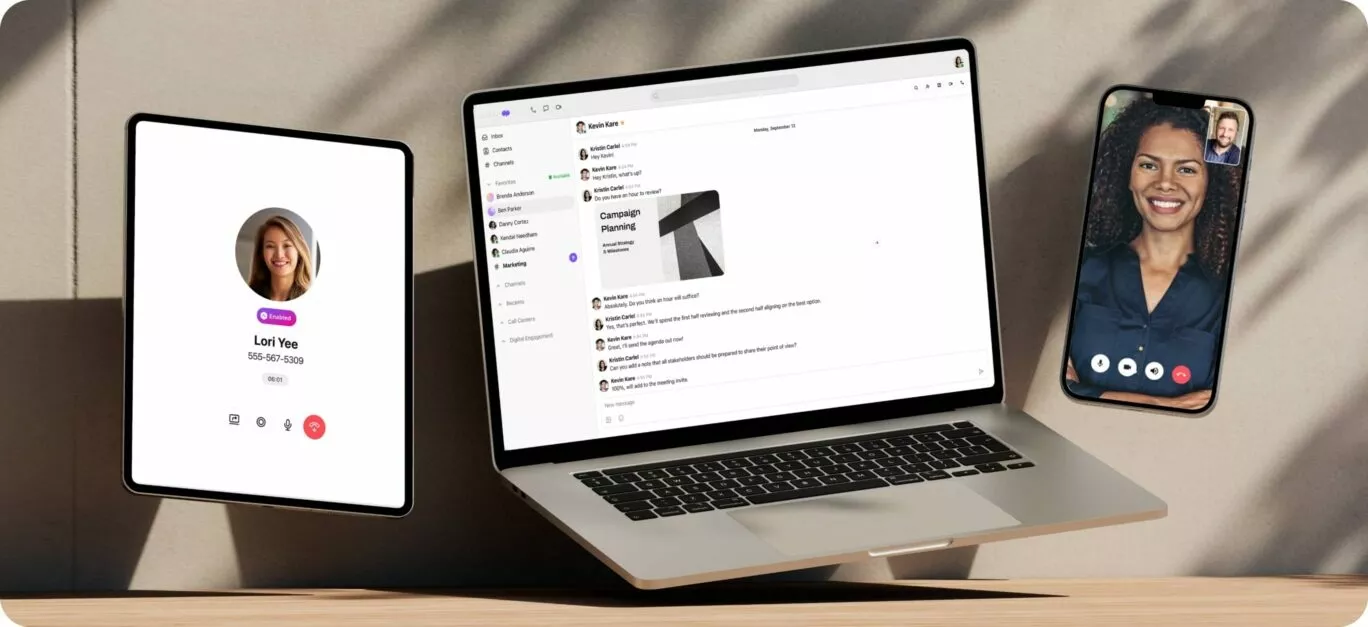
Getting the Dialpad app is straightforward. You have options for every device. This guide shows you where to look.
| Platform | Download Method | Typical Cost | Notes |
| Windows | Microsoft Store / MSI | Free App / Paid Plan | MSI for business. |
| macOS | Dialpad Website | Free App / Paid Plan | Requires Catalina or later. |
| iOS | Apple App Store | Free App / Paid Plan | For iPhone and iPad. |
| Android | Google Play Store | Free App / Paid Plan | Works on most Android phones. |
| ChromeOS | Google Play Store / PWA | Free App / Paid Plan | PWA needs no install. |
| Web Access | Browser (dialpad.com) | Free App / Paid Plan | Recommended: Chrome. |
Get Dialpad on Your Windows PC
For Windows users, downloading the Dialpad app is simple. You can find it in the Microsoft Store. This is the easiest way to install it. Businesses can also use an MSI installer for company-wide deployment. This ensures consistent setup across many computers. The app itself is free to download, but a Dialpad plan is needed to use it. We will look at mobile options next.
Install Dialpad on Your Mac

Mac users can download the native Dialpad app directly. Go to the official Dialpad website for the download link. Make sure your macOS is Catalina or a newer version. You might need to adjust permissions in Security & Privacy settings. This is a standard security step for Mac apps. This ensures the app runs smoothly. Now, let’s talk about using Dialpad on your phone.
Dialpad Mobile App Features
The Dialpad mobile app brings powerful communication to your pocket. You can make calls, send messages, and join meetings from anywhere. It syncs with your desktop to keep you connected. This makes switching between devices seamless. You get the full Dialpad experience on the go. Next, we cover the specific steps for iPhone users.
Dialpad iPhone App Setup

To download the Dialpad app for your iPhone, visit the Apple App Store. Search for ‘Dialpad’ and tap ‘Get’. The app will download and install automatically. Once installed, open Dialpad and log in with your account details. If you are new, you will need to sign up for a plan. This process is quick and easy. Let’s move on to Android devices.
Dialpad Android App Installation
Android users can find the Dialpad app on the Google Play Store. Search for ‘Dialpad’ and select ‘Install’. The app will download and install on your device. Open the app after installation and log in. If you don’t have an account, you can create one. This ensures you are ready to communicate. We will now look at ChromeOS.
Dialpad ChromeOS App Usage
For ChromeOS users, flexibility is key. You can install the Dialpad app from the Google Play Store, just like on Android. Alternatively, you can use the Progressive Web App (PWA). The PWA works directly in your browser. It does not require a separate download. This saves space on your device. This is great for Chromebooks. Now, let’s discuss the PWA in more detail.
Dialpad PWA for Desktop
The Dialpad Progressive Web App (PWA) is a smart choice for desktop users. It offers a full-featured Dialpad experience without installation. You access it through your web browser. This is ideal if you cannot install software on your computer. It works on Windows, Mac, and Linux. This PWA provides consistent performance. It’s a great alternative to native apps. Let’s see how to access Dialpad via the web.
Dialpad Web Access via Browser
You can use Dialpad directly through your web browser. Go to dialpad.com to log in. Chrome is the recommended browser for the best experience. This method requires no downloads at all. It’s perfect for quick access or shared computers. You get full functionality by simply logging in. This covers all the main ways to get Dialpad. Now for the final verdict.
Dialpad’s Future: Always Accessible
Dialpad’s focus on multi-platform access is smart. In 2026, users expect to connect from anywhere. The availability of native apps, PWAs, and web access ensures this. You can download the Dialpad app on any device you use. Always check the official Dialpad download page for the latest links. For Windows, the Microsoft Store is a reliable source. Choose the method that best fits your workflow. This makes staying connected simple and efficient.
Your 3-Step Action Plan to Start Using Dialpad Today
Step 1: Choose Your Platform
Decide where you need Dialpad most: desktop, mobile, or web. For on-the-go access, download the mobile app from the App Store or Google Play.
Step 2: Download and Install
Head to dialpad.com/download for the official links. For Windows, use the Microsoft Store; for Mac, download the native .dmg file.
Step 3: Set Up Your Account
Open the app and follow the onboarding wizard to connect your phone number or workspace. Within minutes, you’ll be making calls and sending messages.
Frequently Asked Questions
Is Dialpad free to download?
Yes, the Dialpad app itself is free to download and use with a trial account. After the trial, you’ll need a paid plan to continue using phone numbers and advanced features.
Can I use Dialpad on multiple devices?
Absolutely. You can log into your Dialpad account on up to 5 devices simultaneously, including desktop, mobile, and web. Your conversations sync across all devices.
Do I need admin permission to install Dialpad on a work computer?
For company-managed devices, you may need IT approval, especially for the MSI installer. The web app is a great alternative that requires no installation.
Choosing Dialpad means investing in a unified communication platform that grows with your business. Its multi-device support and seamless integrations make it a smart choice for modern teams.
Ready to streamline your workflow? Download the app on your preferred device today and experience crystal-clear calls and instant messaging.
Imagine a workspace where every conversation flows effortlessly across screens and time zones. That future is just one download away.
