


You need to download OneDrive for Business right now, but you are stuck on a confusing sign-in screen. That is frustrating, and it wastes precious time you could spend getting actual work done. The good news is that setting up your sync is simpler than you think.
This is not about the free personal OneDrive you use for family photos. We are talking about the secure, business-grade version that connects you to your company’s Microsoft 365 files. In 2026, the process is nearly automatic, but you have to know the right steps to avoid common errors.
How to Download and Install the OneDrive for Business Desktop Client
For most Windows 10 and Windows 11 users, the OneDrive app is already built right into your operating system. You do not need to download anything extra unless it was removed or you are on a fresh install. If you need the installer, go directly to the official Microsoft OneDrive download page to get the latest version.
Mac users can grab the app from the Mac App Store or download a standalone package from Microsoft Support. Once installed, the blue cloud icon appears in your system tray or menu bar. That icon is your control center for syncing work files.
If you already have a personal OneDrive account signed in, do not worry. You can add your business account separately. Just click the cloud icon, go to Settings, then Account, and choose ‘Add an account’. Enter your work email and password, and the setup wizard will create a separate blue folder for your business files.
OneDrive Business Download in 2026: Your Quick Start Guide

| Feature | Availability | Cost (USD) | Setup Time |
| OneDrive Desktop Client | Pre-installed (Win 11/10), Mac App Store, Microsoft Support | Free (with Microsoft 365 subscription) | 5-15 minutes |
| Mobile App (iOS/Android) | App Stores | Free (with Microsoft 365 subscription) | 2-5 minutes |
| Web Portal Sync | Any browser | Free (with Microsoft 365 subscription) | 1-3 minutes |
Get the OneDrive Business Client
Starting in 2026, getting the OneDrive business client is simple. It works for both personal and work files. This unified approach saves you time.
For Windows 11 and 10, it’s likely already there. If not, find it on the official Microsoft OneDrive download page. This ensures you get the latest, safest version.
macOS users can get it from the Mac App Store. Or, download standalone packages from Microsoft Support. This gives you options based on your preference.
Read also: Microsoft 365 Free Trial: How to Get 30 Days Without Paying
Mobile users, find the Microsoft OneDrive app easily. It’s on the Apple App Store for iOS and Google Play for Android. This makes accessing files on the go seamless.
This client is your main tool for downloading OneDrive business files. It connects your computer to your work storage.
Install OneDrive for Work
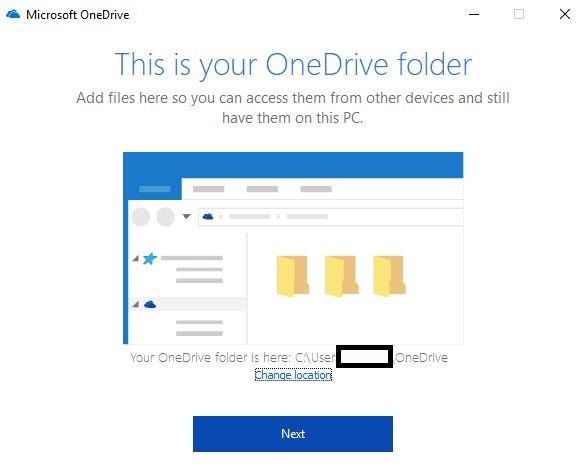
Installation is straightforward. The client handles most of the work for you. This makes the process quick and easy.
Follow the on-screen prompts after downloading. The installer guides you through each step. This minimizes confusion.
Read also: Microsoft Word 365: Why You Should Upgrade in 2026
If you already use OneDrive personal, don’t worry. The business client installs separately. It uses a distinct icon to keep things organized.
This setup ensures your work files are separate. It prevents accidental mixing with personal data.
Set Up OneDrive Business Sync
Connecting your work account is the next step. You need to tell the client where your business files are. This enables synchronization.
Click the cloud icon in your system tray. Then, go to Settings, then Account. Select ‘Add an account’ here.
Enter your Microsoft 365 business email. Use the password your organization provided. The system will verify your credentials.
A setup wizard appears. It helps you choose which folders to sync. You will see a distinct blue cloud icon for work files. This visual cue is important.
This setup is crucial for the onedrive business sync. It ensures your files are always up-to-date.
Microsoft OneDrive Business Download Link
Finding the correct download link is vital. Always use official sources. This protects you from malware.
The primary source is the official Microsoft OneDrive page. Search for ‘Microsoft OneDrive download’. Look for the link that mentions business or work accounts.
For mobile, search ‘Microsoft OneDrive’ in your app store. The official app is easily identifiable. This is the safest way to get the app.
Using the correct link prevents issues later. It ensures you download the legitimate software.
OneDrive for Business Desktop App
The desktop app is key for seamless integration. It works directly with your computer’s file system. This makes file access feel natural.
It allows you to open, edit, and save files directly. They sync automatically to the cloud. This saves you manual upload steps.
The app supports selective sync. You can choose which folders download to your computer. This saves disk space. It is a practical feature for managing large amounts of data.
This desktop app is central to the onedrive business download experience. It brings cloud storage to your fingertips.
How to Download OneDrive Business
Downloading is the first step to using the service. Make sure you are on a stable internet connection. This prevents interruptions.
For Windows, search ‘OneDrive’ in the Microsoft Store. For Mac, search the App Store. These are the most reliable sources.
Alternatively, visit the Microsoft 365 portal. Log in with your work account. You will often find direct download links there. This is a common method for corporate users.
Understanding how to download OneDrive business correctly is essential. It sets the stage for all other operations.
Sync Files with OneDrive Business
Syncing keeps your files consistent everywhere. Changes made on one device appear on others. This is the core benefit of cloud storage.
Once the client is set up, sync is automatic. You will see the status of your files. Icons show if they are syncing, synced, or offline.
You can pause syncing if needed. Right-click the OneDrive cloud icon. Choose ‘Pause syncing’ and select a duration. This is useful during presentations or when saving bandwidth.
This onedrive business file sync feature is powerful. It ensures you always have the latest versions.
OneDrive Business Account Setup
Setting up your account correctly is vital. It links your identity to your storage. Follow the steps carefully.
Use your work email address and password. If you forget your password, use your organization’s password reset tool. Do not try to guess it.
If your organization uses multi-factor authentication (MFA), complete that step. This adds an extra layer of security. It is a standard practice in 2026.
Proper onedrive business account setup prevents access problems. It ensures secure and reliable file management.
Read also: Microsoft Office 365 Home: Why You’re Wasting Money on Personal
Your Quick Action Plan
Ready to sync your OneDrive for Business? Follow these three simple steps.
Step 1: Get the Right Client
On Windows 11 or 10, the OneDrive app is already installed. If not, download it from the official Microsoft site.
Mac users can grab it from the Mac App Store or Microsoft Support. Mobile users head to the Apple App Store or Google Play Store.
Step 2: Add Your Work Account
If you already use a personal OneDrive, click the cloud icon in your taskbar. Go to Settings > Account > Add an account and enter your business email and password.
A setup wizard will create a separate blue cloud icon for your work files. This keeps personal and business data neatly separated.
Step 3: Sync from the Web (Optional)
Log into the OneDrive web portal with your corporate credentials. Click the ‘Sync’ button in the top menu and approve the browser prompt to open the desktop app.
Your local folder will be configured automatically. If you run into errors, double-check your credentials and network, or contact your IT team.
Frequently Asked Questions
Can I use the same OneDrive client for personal and business accounts?
Yes, the standard OneDrive desktop client supports both personal and business accounts. You just need to add your business credentials in the settings.
What if I get an error when signing in?
First verify that your email and password are correct and that you have internet access. If the issue persists, contact your IT support as there may be organizational policies blocking the connection.
Do I need to reinstall the app if I only have a business account?
No, the OneDrive client works the same way for business-only users. Simply sign in with your work email and the setup will configure everything automatically.
Choosing OneDrive for Business means you’re getting a secure, reliable cloud solution that integrates seamlessly with Microsoft 365. This setup keeps your files safe and accessible anywhere.
Now that you’re synced, explore sharing permissions and version history to collaborate smarter. Your team will thank you for the streamlined workflow.
Looking ahead, expect even tighter integration with AI tools for file management. Your digital workspace is evolving, and you’re ready for it.
